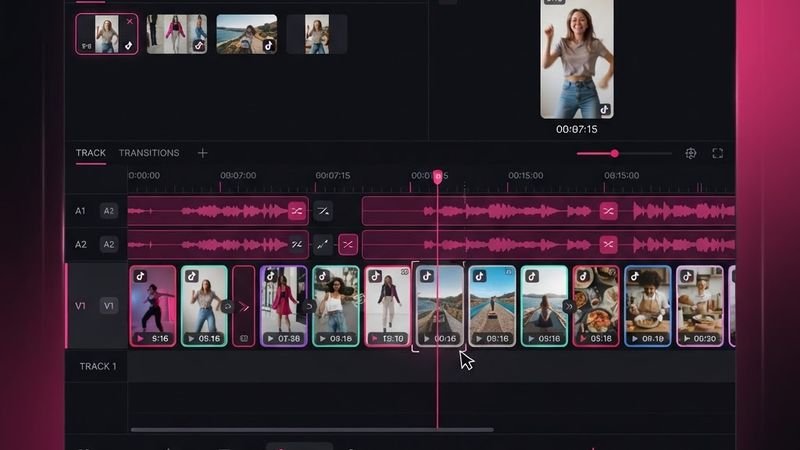
How to Use Downloaded TikTok Videos for Edits and Remixes
Downloading TikTok videos is only the first step. Whether you want to create reaction videos, compilations, or repurpose content for other platforms, here's how to do it properly — from downloading to editing to publishing.
Important: Copyright and Permissions
Before we get into the technical stuff, a quick reminder: you should only edit and repurpose content you have permission to use. This includes:
- Your own videos
- Videos where the creator has given explicit permission
- Content used under fair use (commentary, criticism, parody)
- Content with Creative Commons licenses
Downloading someone else's TikTok and reposting it as your own on another platform is copyright infringement. Always credit creators and get permission when possible.
Step 1: Download the Clean Video
First, get a watermark-free version of the video using TokGrab:
- Copy the TikTok link.
- Paste it into TokGrab and click Download.
- Click "Download Without Watermark" to get a clean MP4.
Having a watermark-free source file is essential for clean edits. The TikTok watermark bounces around the screen and is impossible to remove cleanly after the fact.
Step 2: Choose Your Editing Tool
Depending on your platform and budget, here are the best editing tools for TikTok content:
Free Options
- CapCut — Free, powerful, and available on mobile and desktop. Made by ByteDance (TikTok's parent company), so it works great with TikTok's vertical format.
- DaVinci Resolve — Free desktop editor with professional features. Steeper learning curve but extremely powerful.
- CapCut Online — Web-based version, no install needed.
Paid Options
- Adobe Premiere Pro — Industry standard for professional video editing.
- Final Cut Pro — Best option for Mac users.
Step 3: Common Edit Types
Reaction Videos
Place the original TikTok in one portion of the screen and record your reaction in another. This typically falls under fair use as commentary.
Compilations
Combine multiple downloaded TikToks into one longer video. Always credit all creators in the description or on-screen text.
Repurposing for Reels/Shorts
TikTok, Instagram Reels, and YouTube Shorts all use the same 9:16 vertical format, so downloaded TikToks can be reused directly. However, Instagram and YouTube may flag content that originated on TikTok. To avoid this:
- Add your own intro or outro
- Apply color grading or filters
- Add your own captions or text overlays
- Trim and rearrange clips to make it transformative
Sound Extraction
If you only need the audio, use TokGrab's "Download MP3" feature to get the sound file. You can then use it as background audio in your own content (make sure you have the rights to the music).
Step 4: Export Settings
When exporting your edited video, use these settings for best quality on social platforms:
- Resolution: 1080 x 1920 (9:16 vertical)
- Frame rate: 30fps (or 60fps for smooth motion content)
- Format: MP4 (H.264 codec)
- Bitrate: 8-12 Mbps for 1080p
- Audio: AAC, 128-256 kbps
Step 5: Publishing Tips
- Always credit the original creator — tag them in the caption or add a text overlay with their @username
- Add your own value — commentary, editing, context, or a different perspective makes the content transformative
- Use relevant hashtags to help people find your content
- Check platform guidelines — each platform has different rules about repurposed content
Best Editing Apps for TikTok Content
Beyond the tools mentioned earlier, here's a detailed breakdown of the best editing apps for different needs:
- CapCut (Mobile/Desktop, Free): Best overall for TikTok-style editing. Includes templates, effects, transitions, and text tools. Made by ByteDance, so it understands the vertical format perfectly.
- InShot (Mobile, Freemium): Great for quick edits on mobile. Can crop, trim, add text, and apply filters. The free version has a small watermark.
- VN Video Editor (Mobile, Free): Professional-grade mobile editor with keyframe animation, speed curves, and multiple layers.
- Premiere Rush (Mobile/Desktop, Paid): Adobe's simplified editor for social media content. Good if you're already in the Adobe ecosystem.
- DaVinci Resolve (Desktop, Free): The most powerful free desktop editor. Professional color grading, audio mixing, and effects. Steeper learning curve.
How to Make Reaction Videos with Downloaded TikToks
Reaction videos are one of the most popular edit types. Here's a step-by-step guide:
- Download the original TikTok without watermark using TokGrab
- Record your reaction video (your face/voice) using your phone's camera
- Open your editing app and create a new project
- Place the original TikTok in the top or bottom portion of the screen
- Place your reaction video in the remaining portion
- Sync the timing so your reaction matches the original content
- Add any text overlays or effects
- Export as MP4 in 9:16 format at 1080p
Make sure your reaction adds genuine commentary or value — simply re-watching someone's video isn't fair use.
Creating Compilation Videos
Compilation videos combine multiple TikToks into one longer video. To do this properly:
- Download each video without watermark using TokGrab
- Import all clips into your editor
- Trim each clip to the most interesting 5-15 seconds
- Add transitions between clips (fade, slide, or cut)
- Add a title card listing all creators featured
- Include credit text on each clip with the creator's @username
- Add background music or keep original audio
Avoiding Platform Detection
Instagram and YouTube can detect when you upload content that originated on TikTok (they look for TikTok watermarks and metadata). To avoid detection:
- Always download without the watermark using TokGrab
- Add your own intro/outro to make the content transformative
- Apply slight color correction or filters
- Add your own text overlays or captions
- Change the audio or add a voiceover
- Trim or rearrange clips rather than uploading the full video
The goal isn't to deceive platforms — it's to create genuinely transformative content that adds value beyond the original.
Export Settings for Each Platform
- Instagram Reels: 1080x1920, 30fps, MP4 H.264, under 90 seconds
- YouTube Shorts: 1080x1920, 30fps, MP4 H.264, under 60 seconds
- TikTok: 1080x1920, 30fps, MP4 H.264, up to 10 minutes
- Snapchat Spotlight: 1080x1920, 30fps, MP4 H.264, under 60 seconds
Wrapping Up
Downloading TikToks for editing is straightforward — getting a clean, watermark-free source file is the key first step. From there, any editing tool can help you create reaction videos, compilations, or repurposed content. Just remember to respect copyright and always credit the original creators.